Share Candidate Video Interview Links, Responses and Results
 Updated
by
Amy Thomas
Updated
by
Amy Thomas
Interview Link options
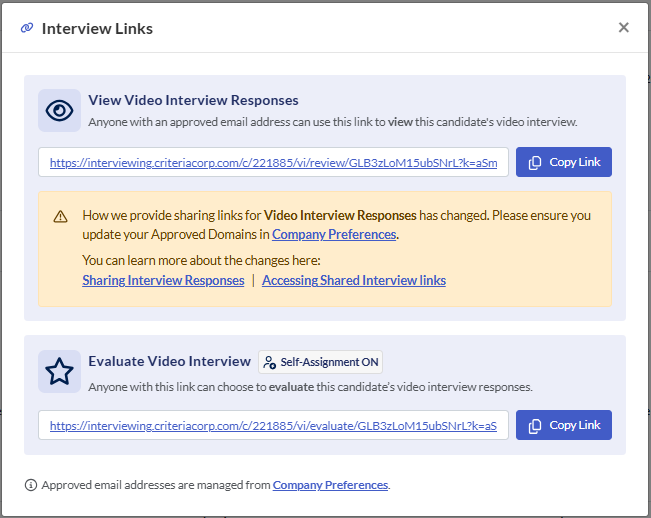
There are two sharing link options available for candidates' video interview responses:
View Video Interview Responses
Anyone with an approved email address can use the View Video Interview Responses link to view this candidate's video interview responses.
This link will only open the Review Responses screen for the person to view the videos (and transcript and summary, if you have Interview Intelligence enabled for your account). This makes it perfect for when you want them to simply view the candidate's responses to the interview questions. They will not be able to add ratings or comments to this page.
Results for both manually evaluated and automatically scored video interviews can be shared with others.
Evaluate Video Interview
Evaluators assigned to this job can use the Evaluate Video Interview link to evaluate this candidate's video interview. By sharing the direct link with a pre-assigned evaluator, there is no need to rely on the evaluation emails.
This is handy when you need to get an evaluator to evaluate a specific candidate: all they need to do is click on the link, verify their email, and they are taken straight to the evaluation screen.
If Self-Assignment is enabled for the job, guest evaluators can use this link to register themselves and begin evaluating candidates. Guest evaluators do not need to be added to your Criteria account as users or assigned as evaluators within the job.
Share an Interview Link
You can share an Interview Link with another person if you:
Are an evaluator in the job | View Video Interview Responses ✅ Evaluate Video Interview ❌ |
Are an admin user | View Video Interview Responses ✅ Evaluate Video Interview ✅ |
Created the job or the job has been shared with you | View Video Interview Responses ✅ Evaluate Video Interview ✅ |
Copy an Interview Link
The Interview Links for a candidate's video interview responses can be found in several places.
In the Video Interview Candidates tab in the Dashboard. | 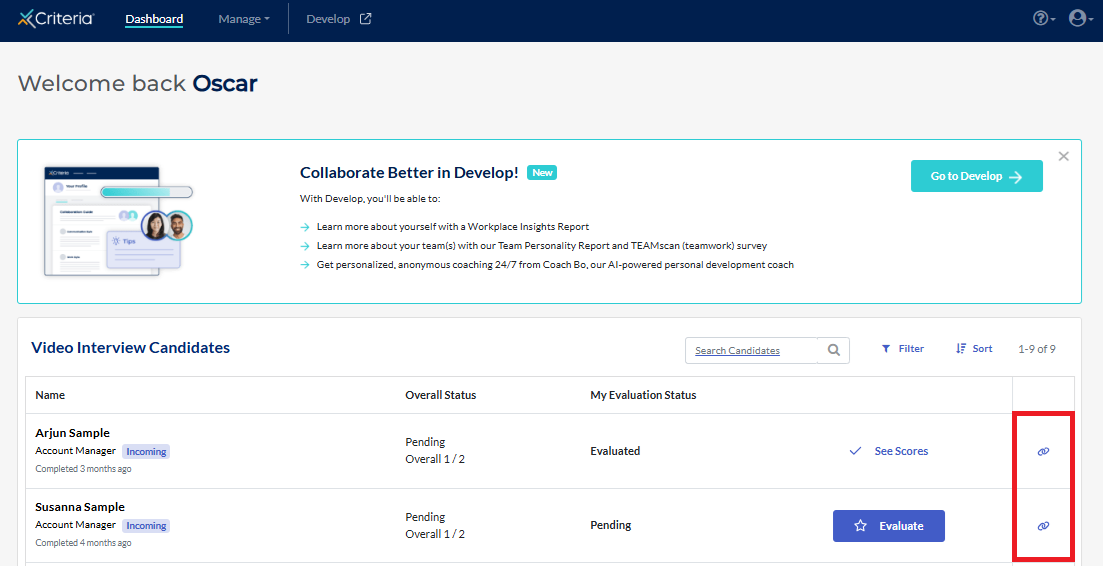 |
In the Results tab in the candidate card, select Video Interview, then Evaluator. | 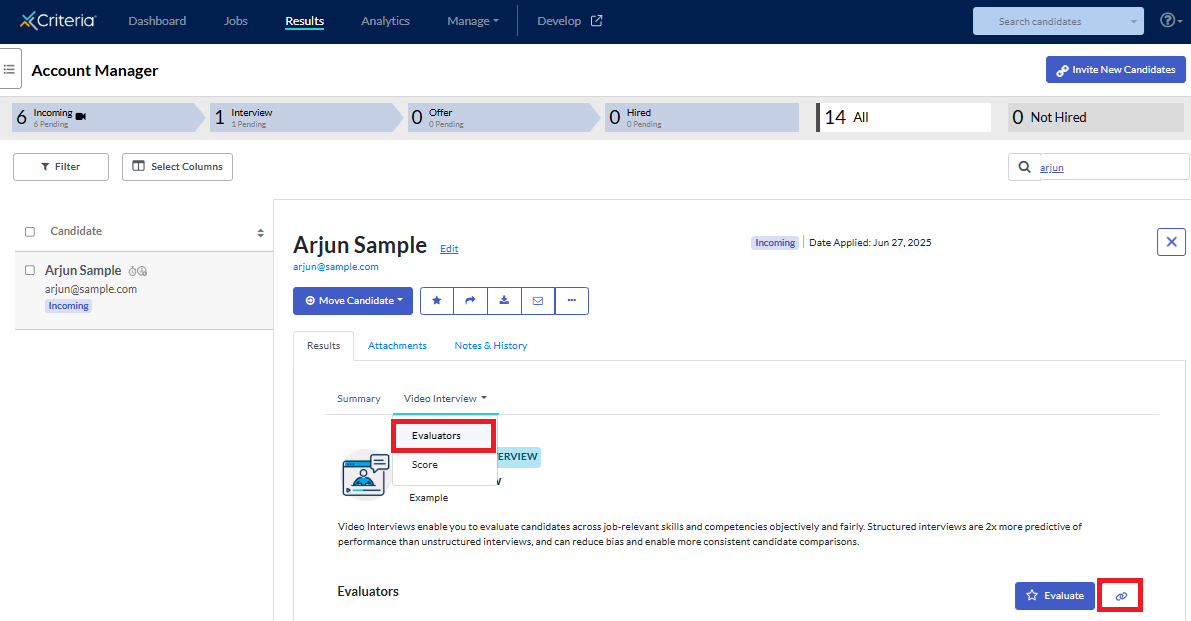 |
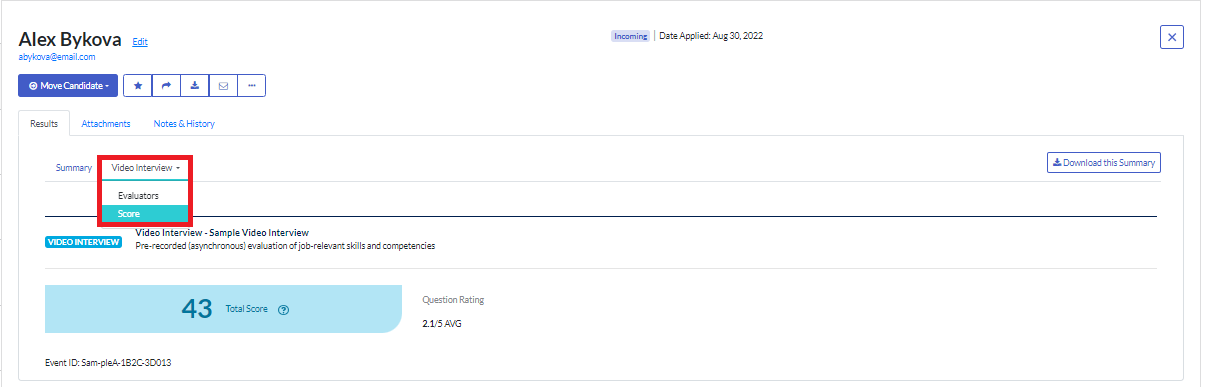
In the Results tab in the candidate card, select Video Interview, then Score. | 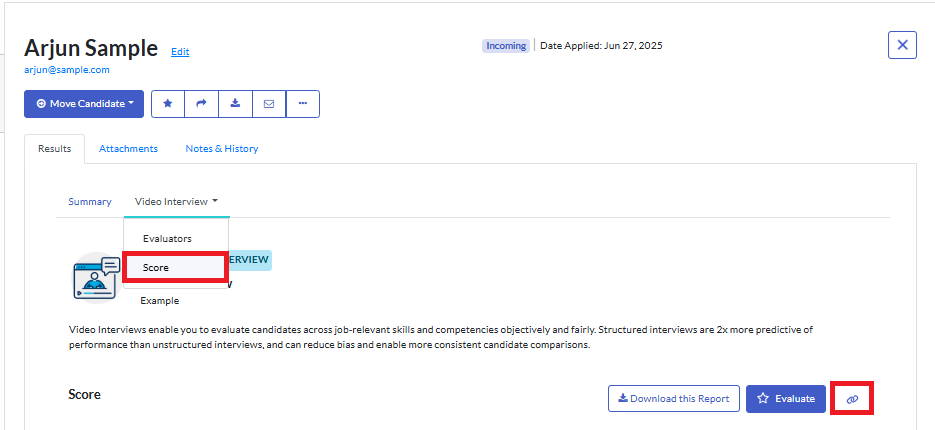 |
On the Evaluate screen. If you are an evaluator for this job, you will need to submit your evaluation first to see the Share Interview Link button on this page. |  |
Click the Share Interview Link icon for the candidate's video interview responses.
Select the appropriate option for the person who will be viewing/evaluating the recordings.
Accessing an Interview Link
To strengthen the security & privacy of the candidate PII data being shared, only those with an email address domain that you approve can access the video interview recordings. The Approved Domains list is configured in Company Preferences and gives you flexible control over sharing with your internal teams or external partners.
When an Interview Link is accessed, the person will be asked to enter their email address. A One Time Password will be sent to the email, which the person will enter when prompted. They will only need to verify once for that browser each day; they will then be able to access links for different candidates without needing to follow the verification process again.
We recommend providing the relevant instructions below with the Interview Link, if this is the first time the person has been given an Interview Link.
View Video Interview Responses
They will not be able to access any other part of your Criteria account from this link.
Reports
There are several ways to download your candidates' results for the video interview from your Criteria account. For example, to share the evaluators' ratings and comments with the hiring manager.
Spreadsheet of results
The Interview Data Report allows you to export your candidates' interview results for a specific job. The Candidate Data Report allows you to export selected assessment and video interview scores for candidates.
You can learn more about these reports here.
PDF reports
You can also download pdf reports of your candidates' results.
On the Results screen, navigate to the candidate's card and click on the Results tab.
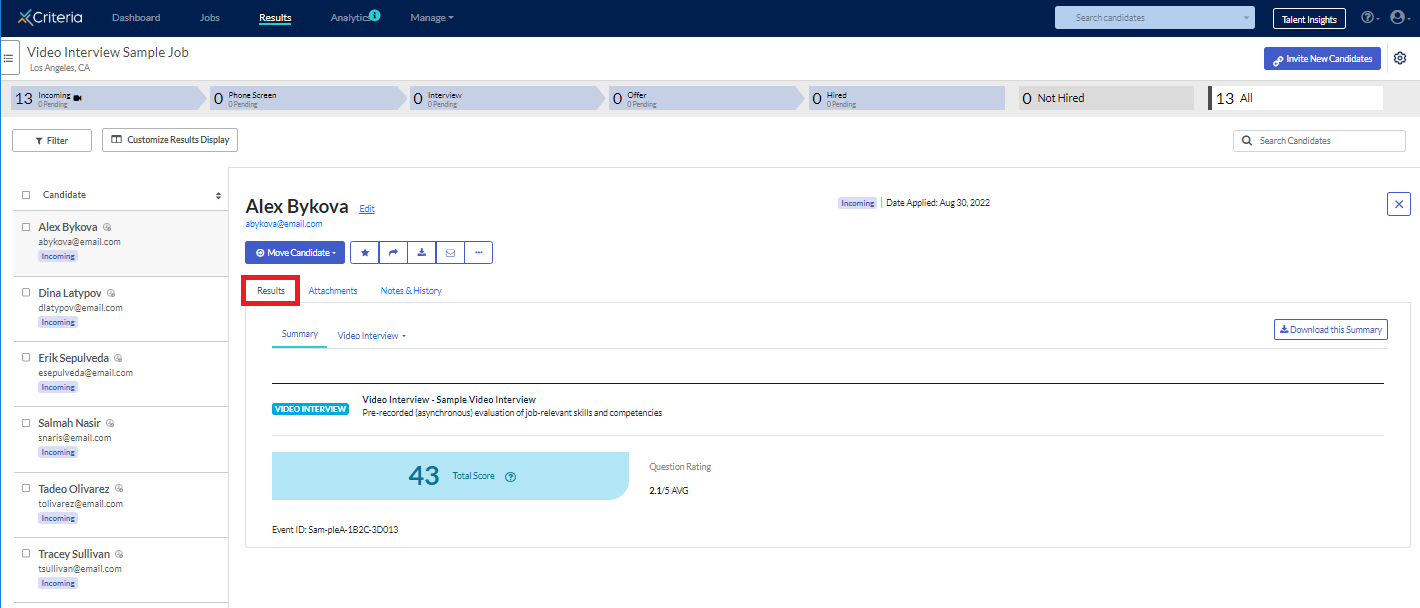
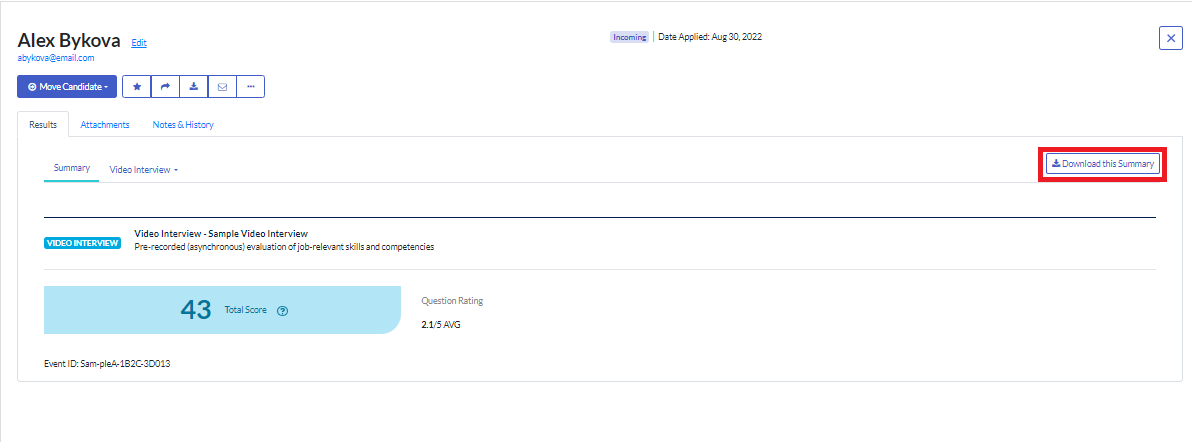
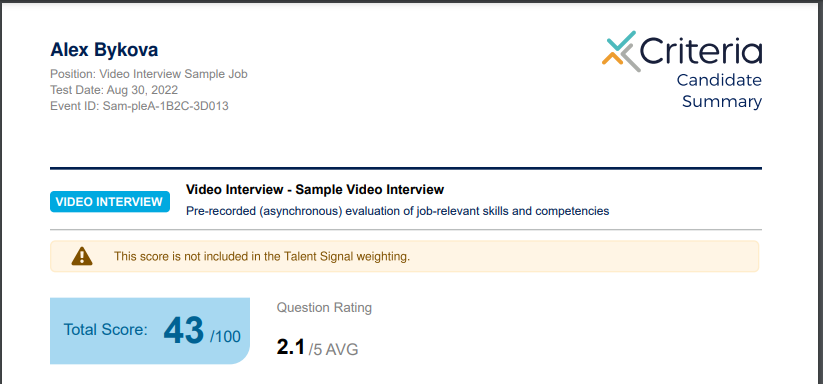
On the Summary tab, click Download this Summary to generate a pdf version of this report.
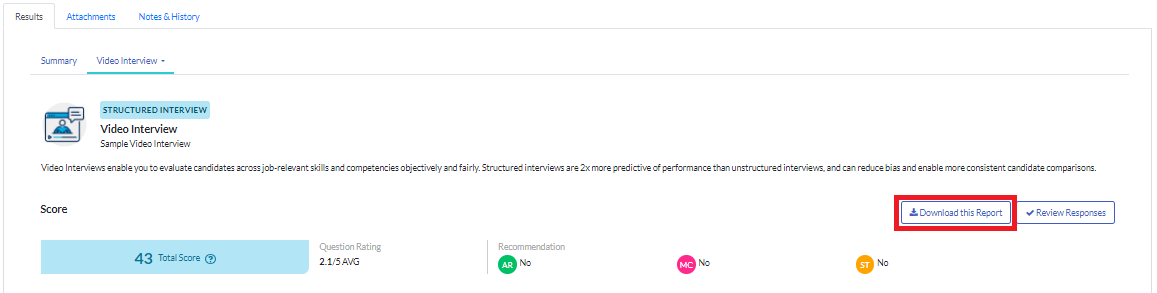
Click Video Interview and select Score from the dropdown.
Click Download this Report to generate a pdf version of this report.
Bulk report download
Downloading candidate results individually can take time, so if you have more than a few candidates, we recommend using the bulk download option.
On the Results page, tick the box to select all the candidates whose results you want to download. If you are downloading all candidates with the same status, tick the box next to the search field. (Note that the limit is 50 candidates per download so if you have more than 50 candidates, you will need to complete this in batches.)
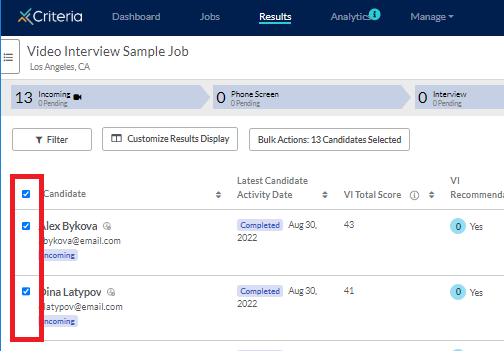
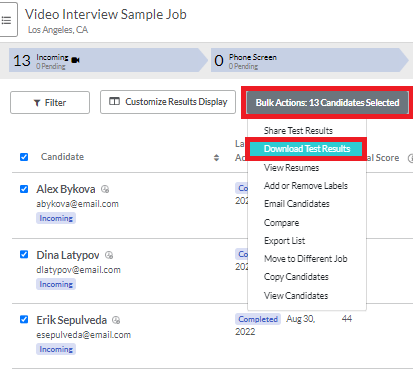
Click Bulk Actions and select Download Test Results from the dropdown list.
Select which documents you want to download and click Download.
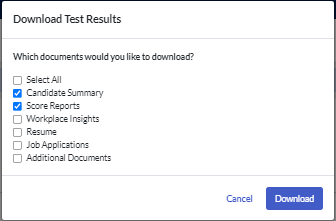
A zip folder containing the pdf files will be downloaded to your device. Note that if your candidates have completed assessments and a video interview, the Summary reports and Score reports for each of these will be created as separate pdf files.
Share a candidate's results
Sharing your candidates' results for a video interview with the hiring manager is easy, using the Bulk Actions function in your Results page. Click here to learn how.
